brocodedDownload
download · early access from ur bro 😉

Get Brocoded.

Two small pieces: an app on the computer where your agent runs, and your phone. Install both and scan one QR code.

1

On your computer

where Claude Code or Codex runs
Open Terminal, paste this one line and press Enter. It downloads Brocoded, puts it in Applications and opens it, with no security warning.
curl -fsSL https://brocoded.cloud/install.sh | sh
macOS 13+ · Apple silicon or Intel
  1. Open Terminal

    Press ⌘ Space, type Terminal and press Enter.

  2. Paste the command and press Enter

    It installs Brocoded in Applications and opens it. Run it again any time to update.

  3. Check your agent runs

    In Terminal, make sure claude, codex or agy starts normally.

  4. Choose Pair a phone

    A QR code and a short code appear. Keep this window open.

Download for Windows
Windows 10 or 11
  1. Download and install

    Run the .exe installer and follow the steps.

  2. Allow network access

    If Windows Defender Firewall asks, allow Brocoded on private networks.

  3. Check your agent runs

    In PowerShell or WSL, make sure claude, codex or agy starts normally.

  4. Choose Pair a phone

    Open Brocoded from the Start menu. A QR code and a short code appear.
2

On your phone

to follow along and answer
Download .apk
Android 10+ · .apk
  1. Download the .apk

    Download it from this page on your phone.

  2. Allow the install

    Android may ask you to allow installs from this source: allow it, then tap Install. If Google Play Protect says it doesn’t recognise the app, tap More details, then Install anyway. That warning appears for any app that isn’t on Google Play yet.

  3. Tap Pair a computer

    Allow camera access when asked, then scan the QR code.

  4. Confirm and open a session

    Check the code matches your computer, tap Pair, then pick a session.

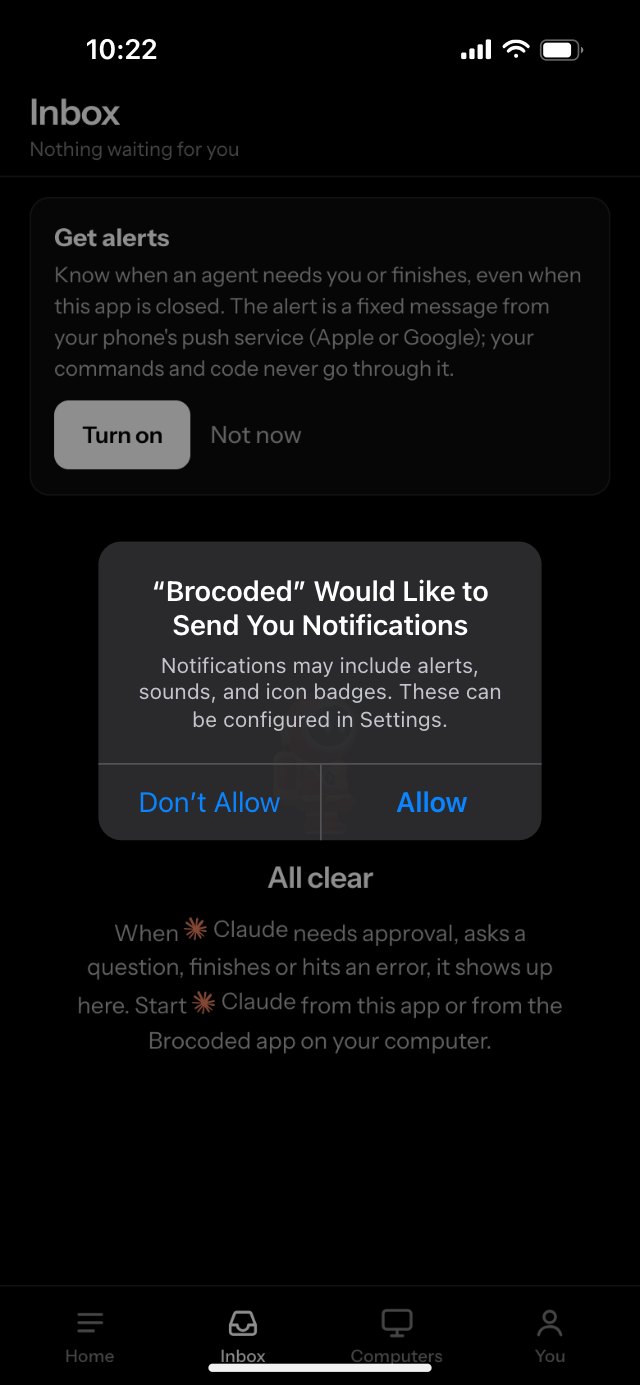
  • A notification when a session needs an approval, an answer, or hit an error.
  • It arrives even when Brocoded is closed.
  • If battery saver closes the app, your session keeps running; Brocoded reconnects when you open it.
Open Brocoded on iPhone
opens app.brocoded.cloud · use SafariSafari · no App Store
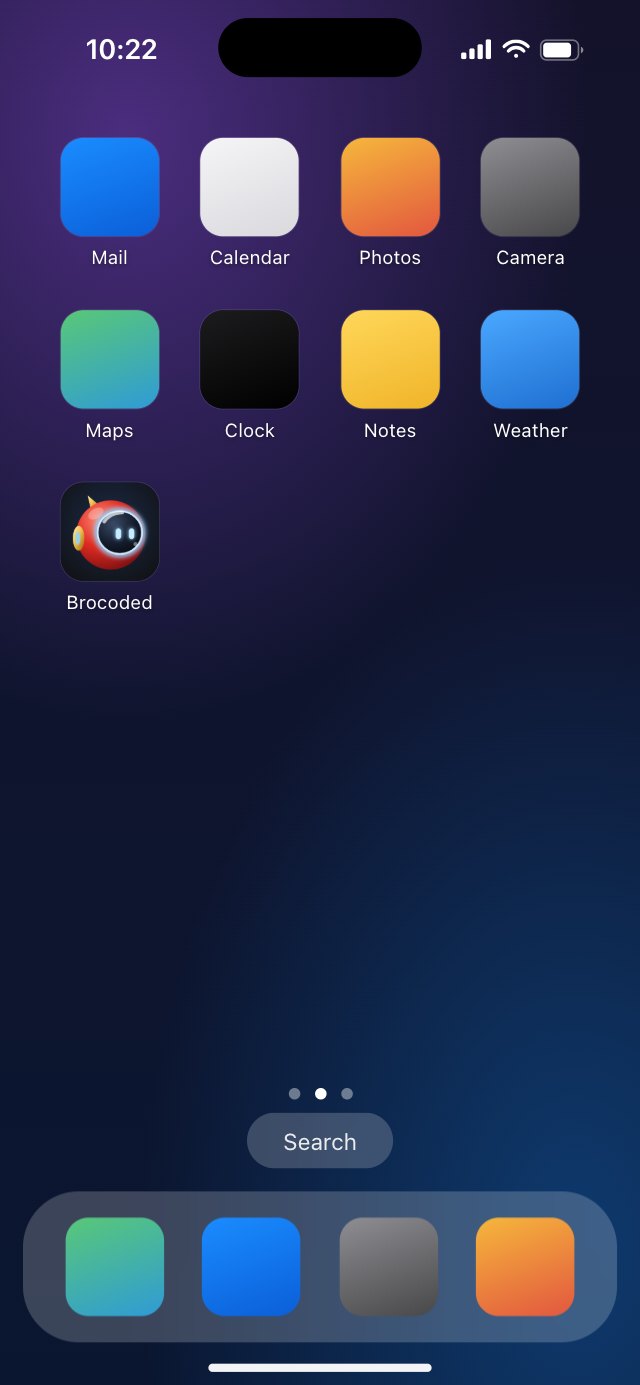
Add it to your Home Screen.

iPhone only delivers notifications to web apps installed on the Home Screen. The seven steps below take about a minute.

  1. Open Brocoded in Safari

    Use Safari. Other browsers can’t add it to the Home Screen.

  2. Add to Home Screen

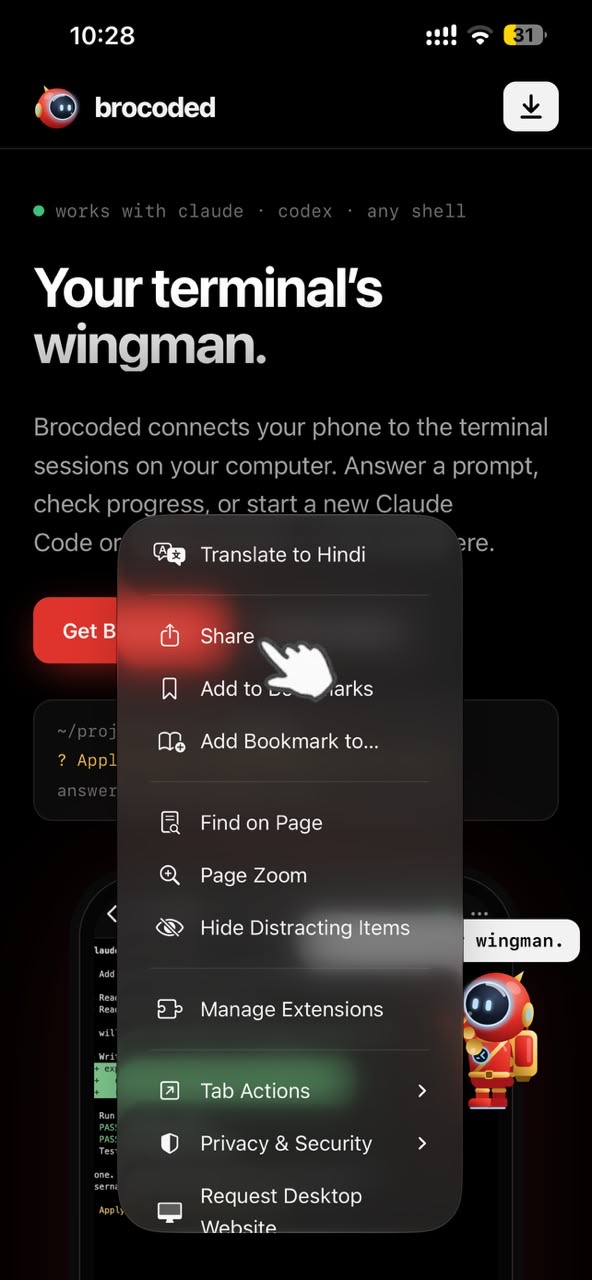
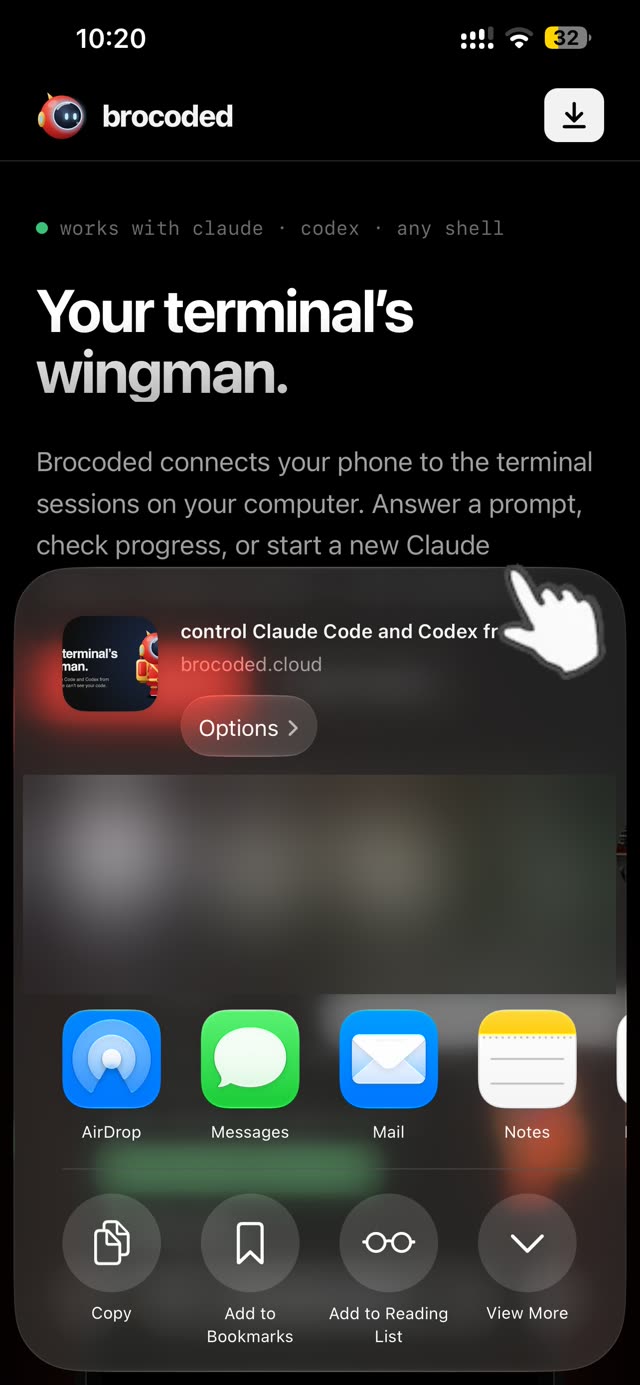
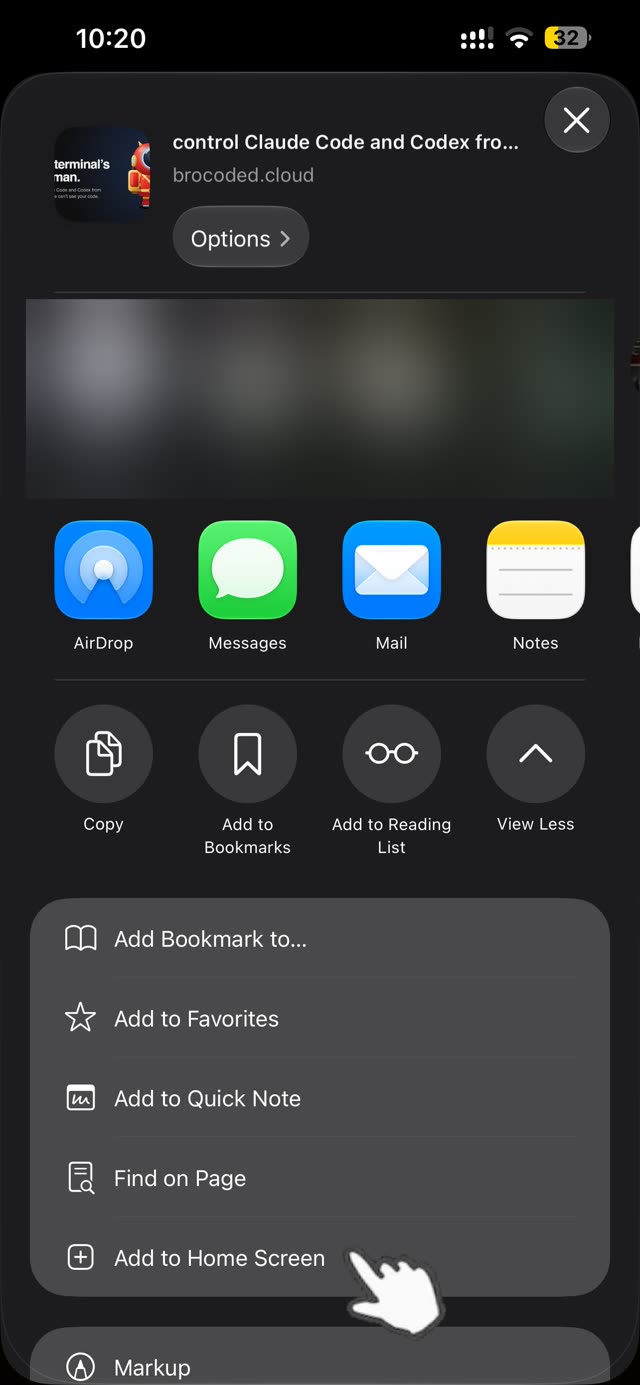
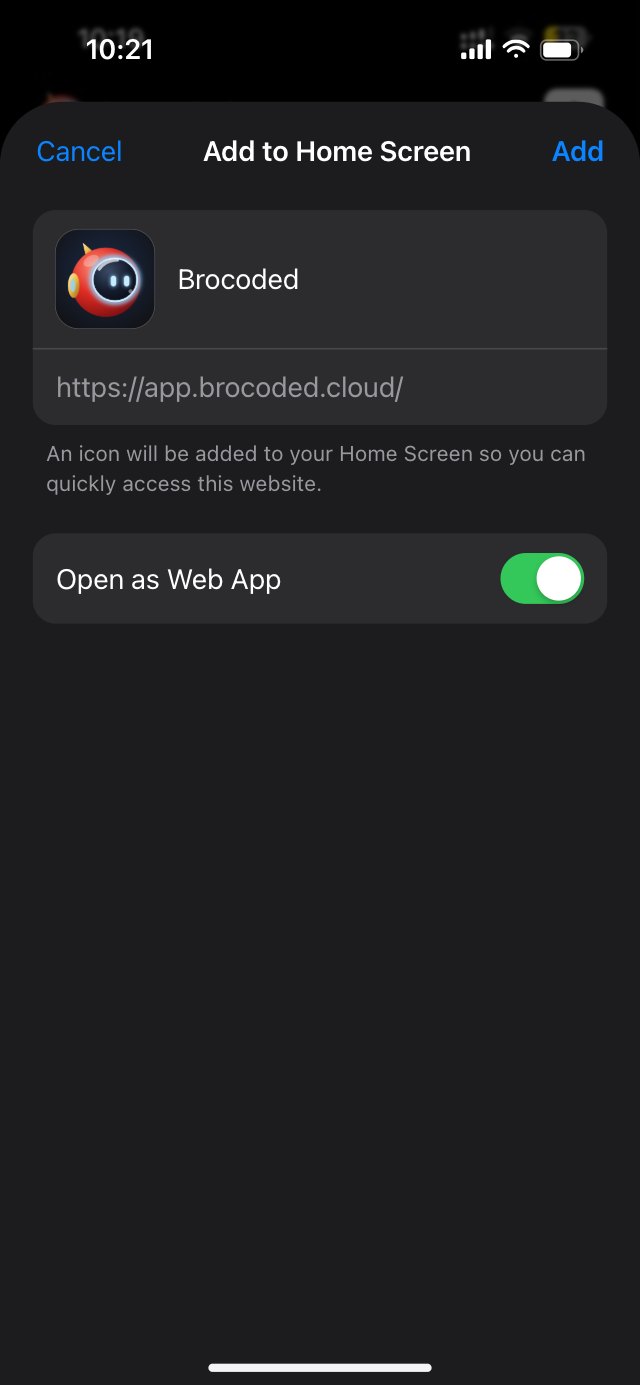
    Tap Share → Add to Home Screen (seven short steps below), then open Brocoded from its new icon.

  3. Tap Pair a computer

    Allow camera access when asked, then scan the QR code.

  4. Confirm and open a session

    Check the code matches your computer, tap Pair, then pick a session.

How to get the iOS app (Add Brocoded to your Home Screen)

Seven taps, about a minute. Contacts in the share sheet are blurred for privacy.

✓On the Home Screen: alerts when a session needs you, opens full screen, keeps its pairing✕Only in a Safari tab: no alerts, and the page freezes when you switch apps
Step 1 of 7Open it in Safari, tap the menu

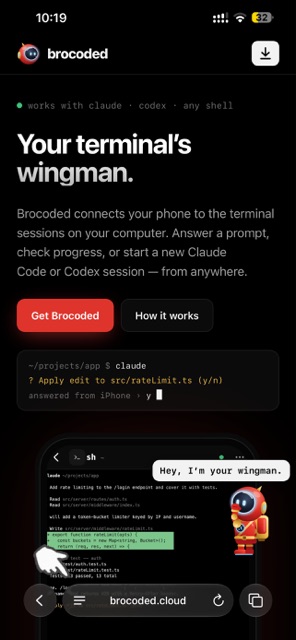
Use Safari (other iPhone browsers can’t install web apps). Tap ≡ at the bottom left.

1 / 7
?Why no App Store app yet?

The App Store and Google Play both charge fees to publish. To launch faster and keep costs low, we’re starting with a web app on iPhone and iPad and a direct .apk on Android. Store apps can come later as Brocoded grows.

Other builds

Older versions and every platform are on the all versions page. Using Linux? Email [email protected].